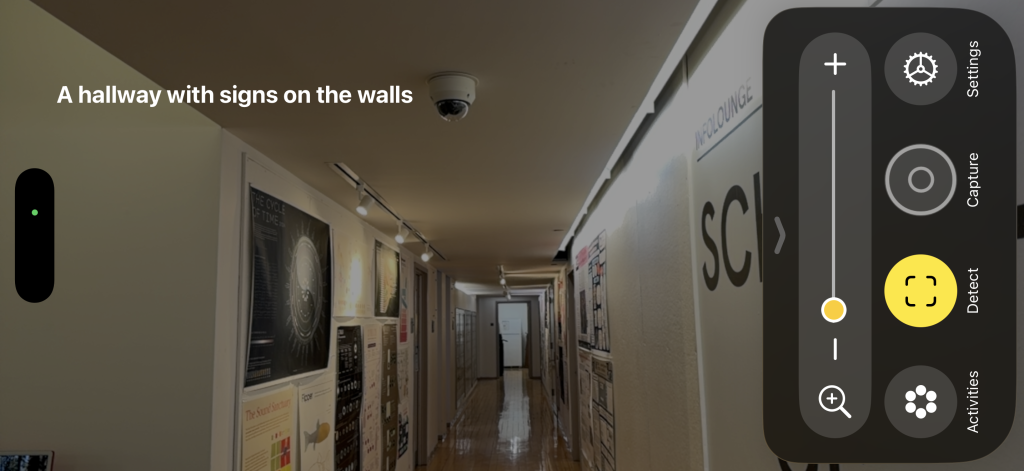
The “Magnifier” is an accessibility utility by Apple that uses the device cameras to assist visually-impaired people with their immediate surroundings. The primary feature of the app is “magnify” – which seeks to assist users read small text. It has many other features too – including scene descriptions, and furniture/door detection.
As this is a design critique on an app, the disability model used primarily in this article is the technological model. Consecutively, this assumes the app is meant to serve technological fixes to the various problems encountered. About the text recognition features -while I am not the target audience for this app, I evaluated the usability of these features primarily assuming the perspective of a user with presbyopia, who might turn to this app instead of their reading glasses.
The evaluation was done while asking the questions – “Why would the user open this app instead of the regular phone camera?” and “Would this be comparable to what is seen through reading glasses?”.
The “detect” mode was a completely different use-case altogether – and was interesting to experiment with. It was fascinating, and one would assume that having this at hand, would be better than nothing at all, for certain individuals in certain scenarios. I did not find online videos of people with visual impairments using this app. I’m not sure how using this app would compare to other technological solutions, even walking canes.
The following covers text-recognition primarily, through different options on the “Magnifier” app.
Magnification
1. Reading a tag with the app out-of-the-box
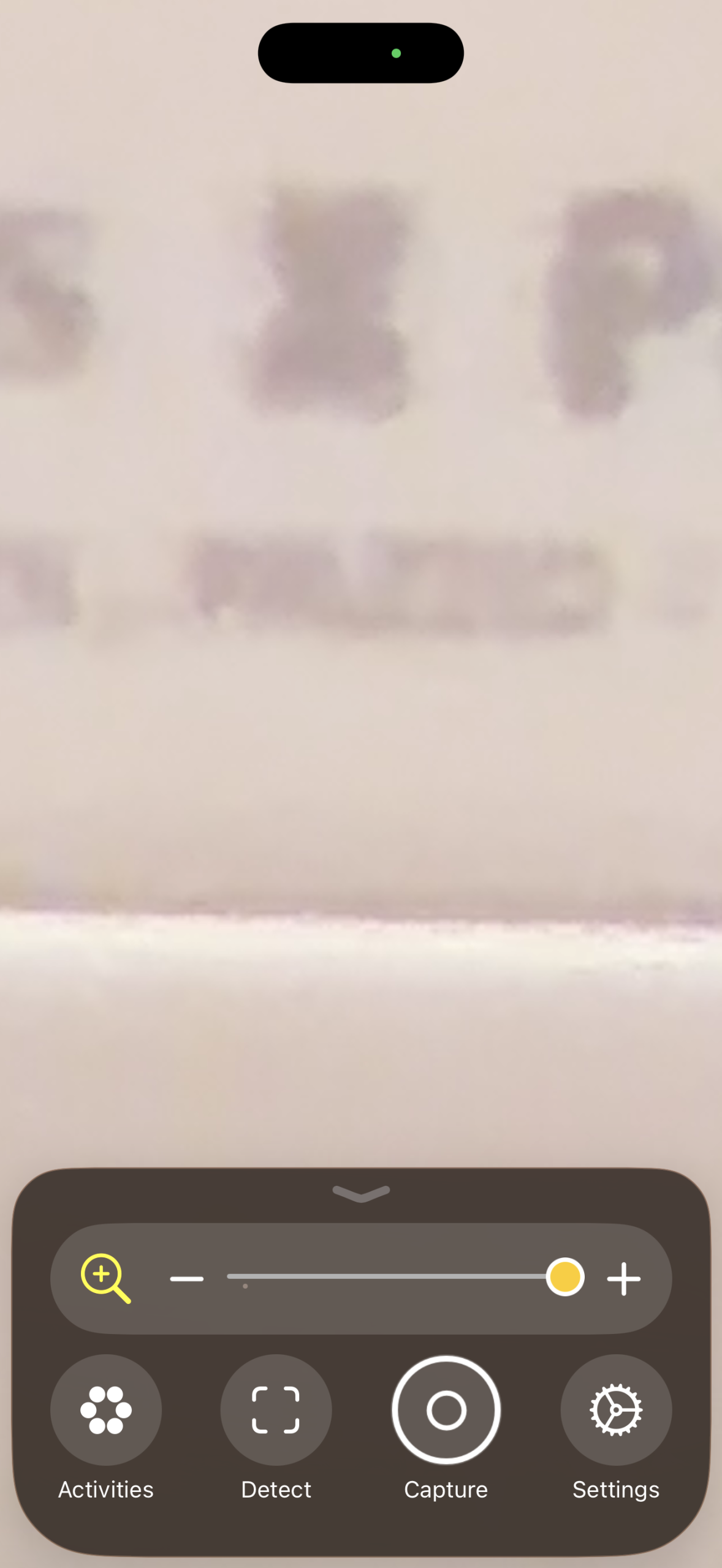
- The app opens up a camera view directly, with a prominent zoom-slider.
- I focused on the small text on a tag on a purse through the app. My first impression was that this was not very effective – as the text was still not very legible, as is evident in the screenshot.
- My primary concern was that there were no real-time visual enhancements applied to the frame. One has to imagine that increased contrast, for example, could help improve legibility.
2. Using the “Capture” button
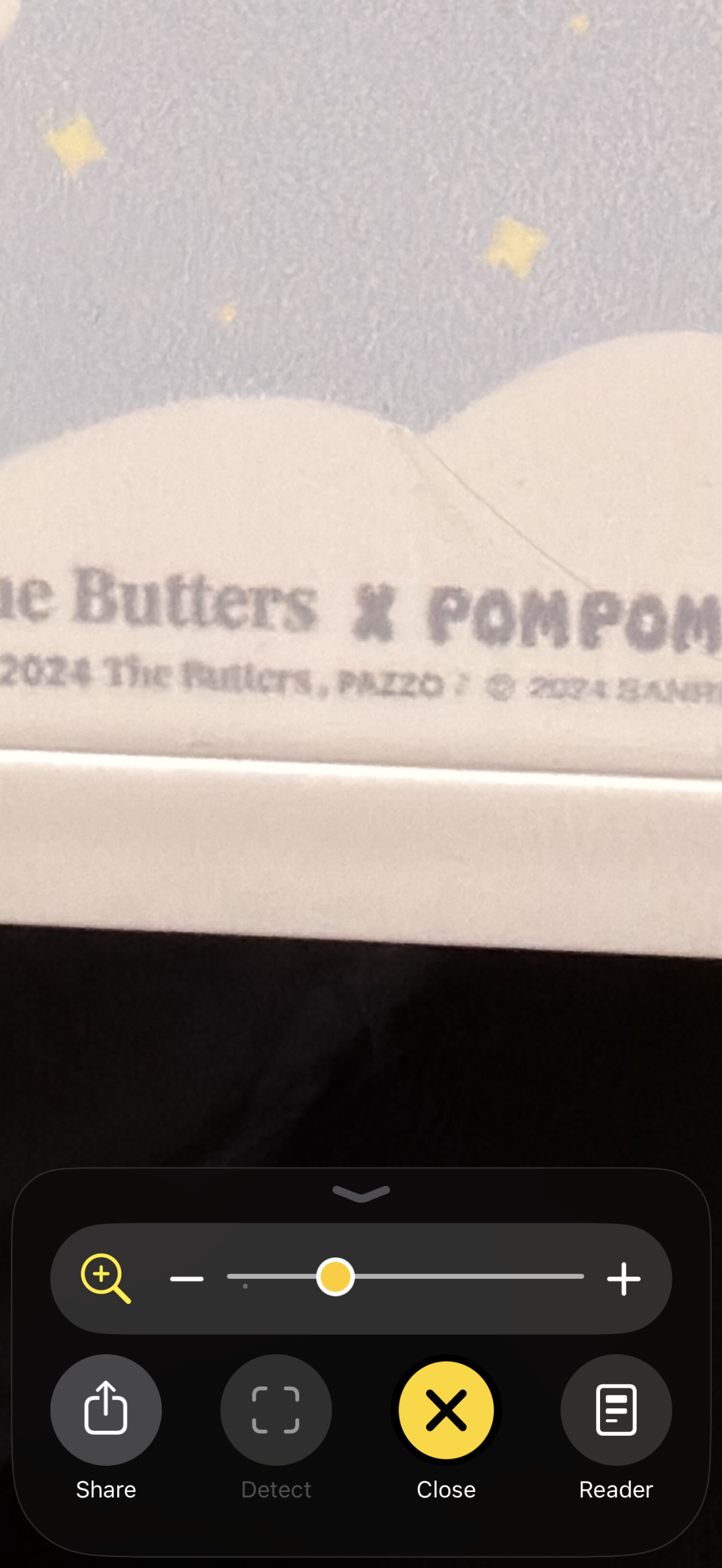

- “Capturing” an image of the tag however did improve the text legibility
- The distinction between the text and its background was more prominent. This could be due to it being a still image of possibly higher resolution.
- The “Reader” mode was the game-changer here – as it showed the recognized text. Further, there were options to vary text display options including colors and size. Audio could be played too, with the phone reading out the recognized text.
- Note that the recognized text was not accurate – “©” and “CO. LT” are misread as “@” and “DO.(T”
3. The “Detect” mode
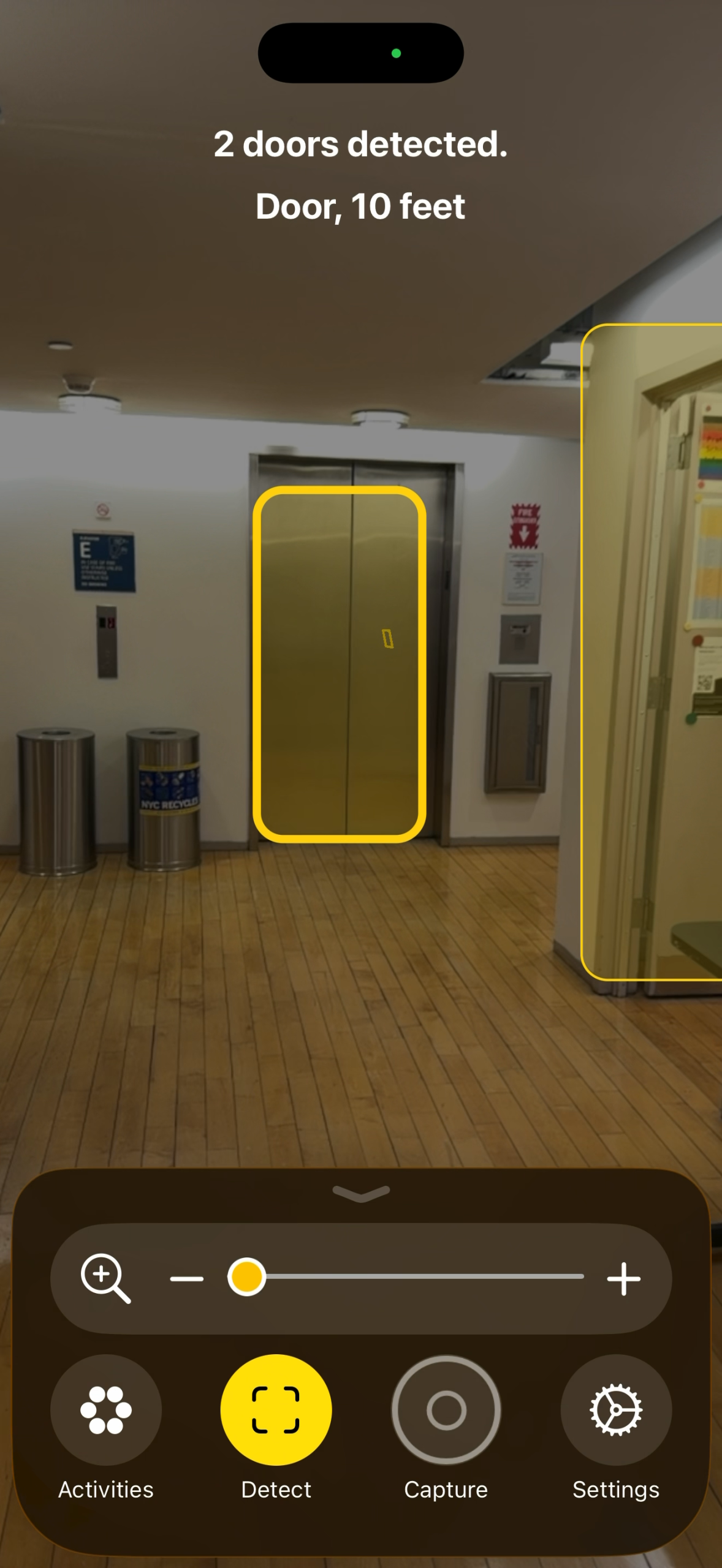
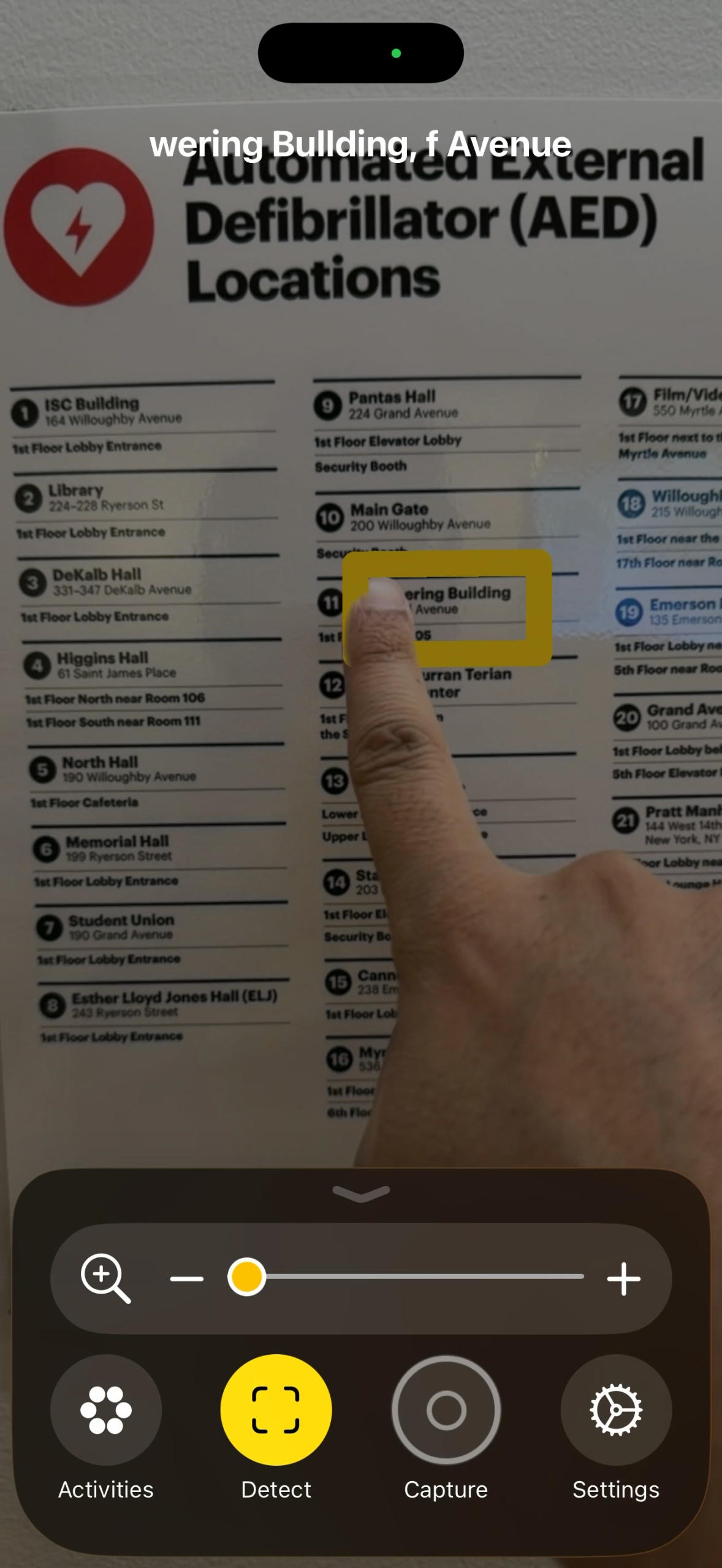
- “Detect” mode provides extensive features including
- Scene Descriptions
- Detection of people, furniture, and doors
- Text, with the option for “Point and Speak”
- “Scene” mode was fairly accurate – whatever was visible in the frame was described through text and audio. For example, if the camera was pointed at a table, the audio would say “A black table with a blanket on it”.
- The detection of obstacles could potentially be useful too. Through audio descriptions, beeping, and haptic feedback, it told me about the distances of furniture and people nearby. I was not able to find online videos of visually impaired people using this app.
- The text detection in this mode was good for large text, however, as in the screenshot, smaller text was not recognized as well. In the screenshot 3b, the app is set to detect text that is under the pointer finger. Considering that the source text was not obscured in the seconds before this screenshot was taken, it is surprising that the text detection still got it wrong.