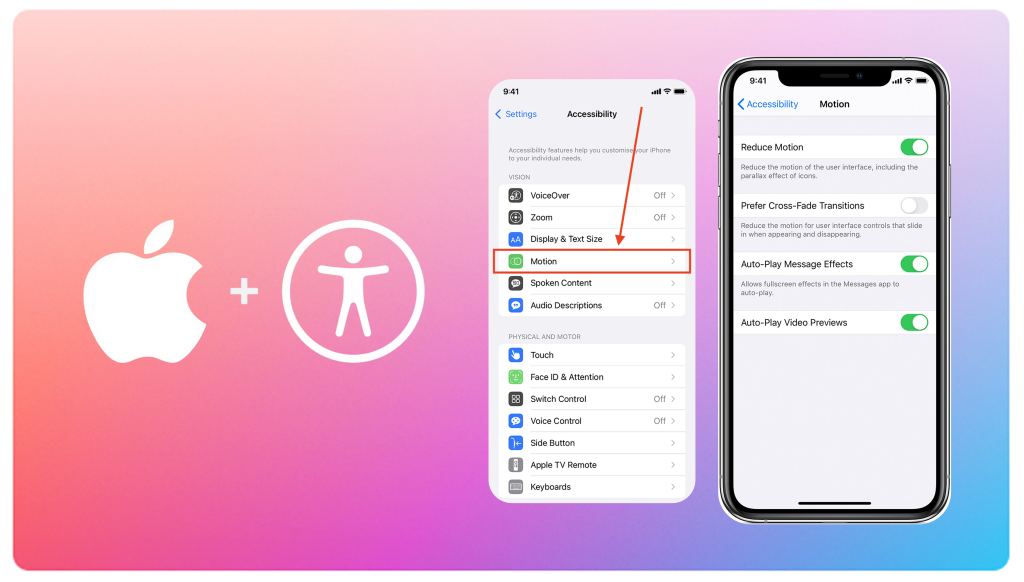
Reduce Motion is an accessibility setting in Apple’s operating systems that limits screen animations such as zoom effects, parallax movement, and large transitions. It doesn’t remove features or content, but it changes how movement is used so the interface feels more stable and less physically overwhelming. It is commonly used by people with vestibular disorders, migraines, post-concussion symptoms, and sensory processing differences, as well as by people experiencing temporary sensitivity due to fatigue, stress, or illness.
I did not know Reduce Motion existed until I needed it.
It sits quietly inside Apple’s accessibility settings, and unless you are actively looking for it, there is a good chance you will never notice it. That invisibility is part of why it’s interesting. Reduce Motion doesn’t announce itself as assistive technology. It doesn’t change how an app looks in a dramatic way. It simply changes how the interface behaves.
Reduced Interface Animations
For some people, animated interfaces are not just distracting but physically uncomfortable. People with vestibular disorders, migraines, post-concussion symptoms, or sensory sensitivities can experience dizziness or nausea when screens rely heavily on motion. What is often treated as a “nice” animation can quickly become a barrier to using the product at all. When Reduce Motion is turned on, Apple replaces large zoom animations and layered motion with simpler transitions, usually fades.
Preserving Task Flow Without Motion
Apps still open. Screens still change. Nothing about the task itself disappears. The difference is that movement stops being the main way the interface communicates change. Looking at this through the medical model of disability, Reduce Motion can be seen as a response to individual physical symptoms. Motion sensitivity is treated as something the interface needs to adjust for. This framing makes sense, especially when someone experiences real physical discomfort while using a device.
The social model of disability tells a different story. Motion-heavy interfaces are not required for usability. They are design decisions. When designers assume that animation improves clarity or delight for everyone, they unintentionally exclude people who cannot tolerate it. From this perspective, the disabling factor is not the person’s body, but the interface itself. Reduce Motion works by changing the environment, not the user. This feature also connects to affordances. If an interface moves too much, it can be harder to understand where you are or what just happened. For some users, motion makes interactions less legible, not more. Reducing animation can actually make navigation clearer and easier to follow.
System-Level Motion Reduction
Another thing that stands out is that Reduce Motion works across the system. Once it’s enabled, it affects many Apple apps and third-party apps as well. Users don’t have to fix each experience one by one. This feels like a practical, scalable solution rather than a patch. Reduce Motion also challenges assumptions about who accessibility is for. Someone might turn it on temporarily because they are tired, stressed, or recovering from an illness. Others may rely on it long-term. Disability is not always visible or permanent, and this feature quietly acknowledges that.
Reduce Motion is not perfect. It is buried deep in settings, and some apps rely too much on animation to communicate changes. Still, it shows how accessibility doesn’t always mean adding more features. Sometimes it means removing unnecessary ones.
Conclusion
Reduce Motion shows how accessibility does not always require adding new features or creating separate experiences. Sometimes it means questioning design habits that are taken for granted, like the assumption that motion improves clarity or delight. By reducing unnecessary animation, Apple shifts responsibility away from the user and onto the interface itself. The feature demonstrates how small, system-level design decisions can quietly remove barriers and make everyday technology more usable for a wider range of people.
References
Apple Support. Reduce screen motion on your iPhone, iPad, or iPod touch.
https://support.apple.com/en-us/111781
Apple, Reduce Motion and the battle for vestibular accessibility
https://reverttosaved.com/2023/09/27/apple-reduce-motion-and-the-battle-for-vestibular-accessibility/
Understanding the Reduce Motion Feature on iPhone
https://www.oreateai.com/blog/understanding-the-reduce-motion-feature-on-iphone-a-guide-for-users/7e50912bb334a6764fa258d159ce259b
Mayo Clinic. Dizziness and visual motion sensitivity.
https://www.mayoclinic.org
Customize onscreen motion on iPhone — Apple Support
https://support.apple.com/guide/iphone/customize-onscreen-motion-iph0b691d3ed/ios?utm_source=chatgpt.com
iOS 17: How to Reduce Motion on iPhone — Solve Your Tech tutorial