
Adobe Lightroom is a computer program geared toward photographers that allows users to organize, touch up, and edit large amounts of photos. Importantly, edits are non-destructive – meaning that edits are saved as instructions rather than modifying the original image.
Importing Photos
To import images, Lightroom opens up your computer’s local file management system, easily bridging the gulf of execution and allowing you to access your images in a format you are already familiar with. After selecting your images, you are met with a confirmation screen that allows you to deselect, or undo, any image if you change your mind, helping to satisfy heuristic #5 from Norman’s 10 Heuristics. If you deselect an image, you also receive immediate feedback as the box is now clear and unchecked.

Editing Your Photos
Upon importing your images, you are taken to the main editing interface. To organize all of the adjustments in the main editing sidebar, they are grouped into different categories such as ‘Light’, ‘Color’, and ‘Effects’ to utilize the user’s existing conceptual model around these concepts, giving them an idea of what options each section might offer. In the ‘Light’ panel, most adjustments are displayed via a sliding bar. The horizontal bar affords horizontal movements along it. The circle in the middle affords clicking and its placement in the middle signifies the ability to move it left or right. As you click and drag the circle, you are presented with multiple forms of feedback: the circle becomes a solid color while you are holding it, and you can visually see it move left and right. There is also a numerical value that goes up when you drag to the right and down when you drag to the left to show the increase or decrease in that setting, following a common natural mapping where increasing or turning something up often means moving or turning it to the right.

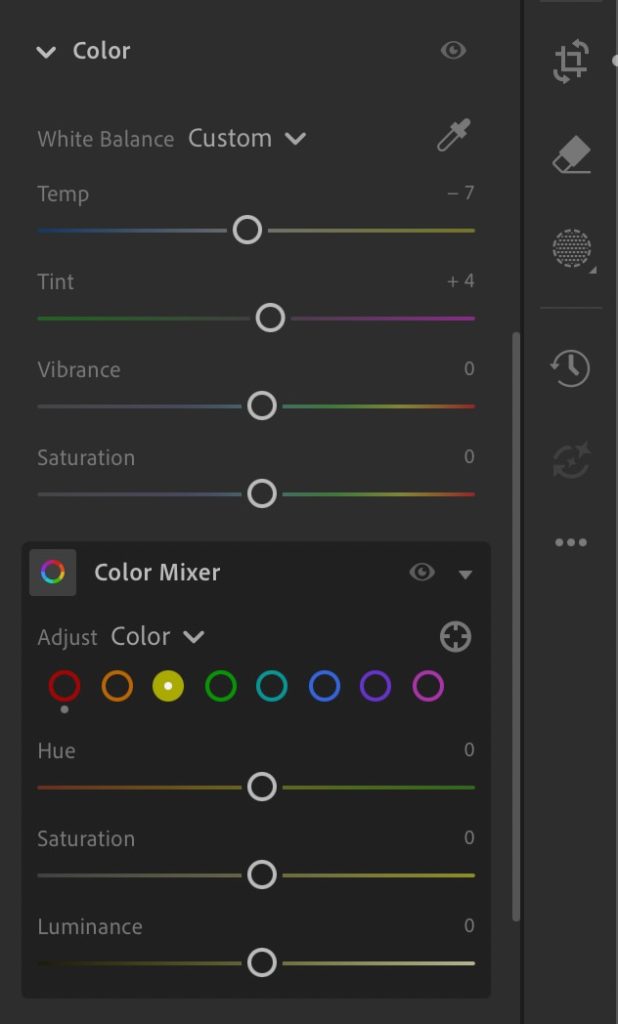
The ‘Color’ panel not only employs sliding bars but also employs different colors within the bars to help strengthen the user’s conceptual model of each setting. For example, the saturation bar is gray on the left and colorful on the right, indicating that dragging it to the right will increase the intensity of the color. Hue, saturation, and luminance also employ changing colors to increase the discoverability of each option’s effect.
Comparing Your Edits with the Original Photo
You can compare the edited image to the original image freely via a small icon toward the bottom right of the screen. This easy before-and-after view appeals to the user’s visceral processing – seeing the effects of your work might elicit a happy or satisfied feeling, or it could create feelings of determination or frustration if the change isn’t what you were going for. Though the designers have done their best to create an explanatory icon for this action, it still may not be entirely clear what it means to a more novice user. This icon requires previous knowledge in the head, and if you lack this knowledge, you may not ever discover this feature.


Many edit subcategories allow the user to more specifically see the before-and-after effects of that particular category via the eyeball icon at the top right of each section. However, these icons don’t follow the same conventions as the other before-and-after tool – while the main before-and-after function is clicked to be activated and clicked again to be deactivated, the eyeball icons need to be held down and automatically deactivate when let go, disrupting the conceptual model of this feature and potentially leading to confusion. Choosing one of these options for all before-and-after features would ensure consistency.
Getting Around Using Icons
There are other places where Lightroom relies on icons. Some attempt to build on knowledge in the world and are more commonly seen design icons, such as the eyedropper and crop icons. Some, however, such as the masking tool icon or the target icon in the color mixer menu, are less intuitive and require the user to create knowledge in the head about them.

Overall,
Lightroom makes good use of easy-to-interpret affordances, signifiers, and feedback by building on knowledge in the world to lessen the user’s cognitive load. However, with some increased feature consistency and better explanation of icons, Lightroom could become an even more effective photo editing tool.